
API configuration and sandbox testing
Wealth manager integration: Anchorage Digital API keys and sandbox testing
Prior to setting up your API keys for sandbox testing or production, review these key concepts and steps:
- API permission groups
- Wealth manager - master API key
- Shared API key
- Signing requests with your API key
- Sandbox testing considerations
API permission group
Before generating an API key, configure the specific permissions it requires. This is called an API Permission Group. Enabling the correct permissions ensures the API key can perform all necessary functions.
Creating an API permission group:
- Navigate to the API 2.0 Developer page on the Anchorage Digital dashboard.
- Scroll down to API permission groups and select "create a new group."
- Name the key and enable the following permissions:
| Permissions | Enable? | Notes |
|---|---|---|
| Initiate withdrawal | No | Not required for wealth management integration (withdrawals occur from vaults and wallets, not ledgered accounts). |
| Read subaccounts | Yes | Grants permission to read all balances and transactions on the wealth management ledger. |
| Write subaccounts | Yes | Enables transaction creation on the wealth management ledger. |
| Execute trades | Yes | Allows trading from ledger balances. If not visible, the user is not an enabled trader. |
| Read trades | Yes | Grants permission to read all trades and trade settlements. Select: "All Trades on the org" Note: If this permission is not visible, reach out to your account representative to enable the user for trade permissions. |
| Onboarding | Yes | Enables API-based client onboarding. |
| Read deposit attribution | Yes | Allows access to past and current deposit attributions. |
| Configure webhooks | Yes | Enables webhook notification setup. |
| Read vault | Yes | Allows reading balances across all wallets in the account. Select "All vaults." |
| Create new address | Yes | Allows creation of deposit wallets for account funding. |
| Transfer | No | Not needed for wealth management integration. |
| Propose and accept settlements | No | Not needed for wealth management integration. |
| Authorize settlements | No | Not needed for wealth management integration. |
Note: Once you submit this permission group for quorum approval, you will need to endorse this operation using the iOS app to achieve quorum. Then, Anchorage Digital will perform a risk review analysis and approve the permission group before you can proceed to create an API key tied to this permission group.
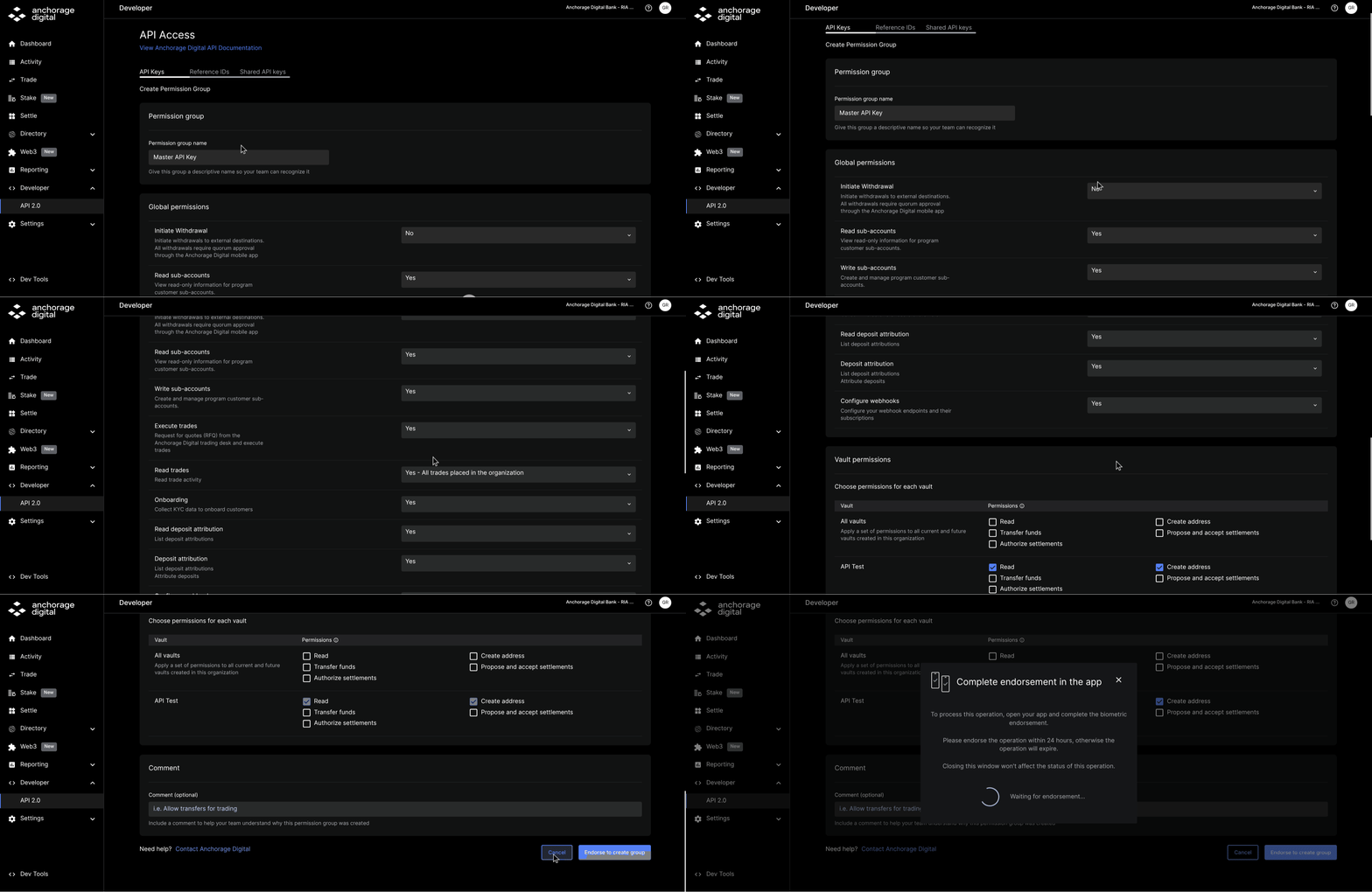
How to create an API permission group
Generating the API key
After the above steps are completed, you can create the wealth manager - master API key for your integration. Follow the steps outlined below:
Step 1: Generate a unique Ed25519 public/private key pair
# https://pypi.org/project/PyNaCl/

import nacl
import nacl.signing
import secrets

seed = secrets.token_bytes(32)

# Generate a new random signing key
signing_key = nacl.signing.SigningKey(seed)

# Obtain the hex-encoded signing key
print('Signing key:')
print(signing_key.encode().hex())

# Obtain the hex-encoded verify key for the given signing key
print('Public key:')
print(signing_key.verify_key.encode().hex())
Example keys:
Signing key: 9afeef68d0627eaeb1f40767f3913cf6da20e59caa49342a93b7b4786cae4a48
Public key: 92ee13655b4f599678203a7785f1cacefa71ccbdca793fcf5cb46b6af6619974
Step 2: Create the master API key
Navigate to the Developer API 2.0 page and use the public key to generate the API key using the permission group from Step 1.
Note: Ensure you copy the API key immediatelyThis key will not be available again to anyone on the account once you move on from this screen. If you lose the key, you will need to deprecate/revoke access and create a new key. For more information, please refer to the T&Cs regarding lost key API access.
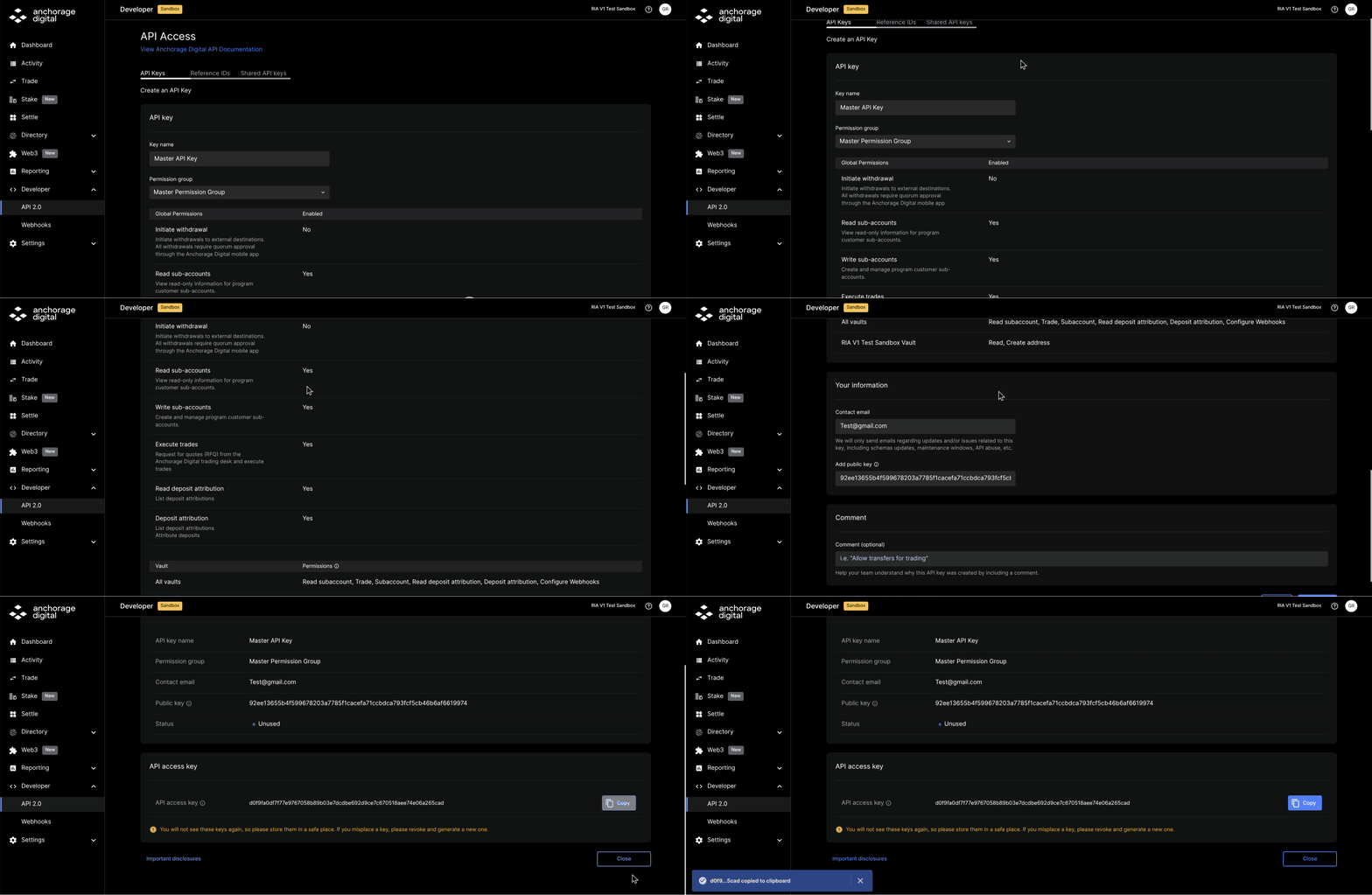
How to create an API key
Example API Key (not active): d0f9fa0df7f77e9767058b89b03e7dcdbe692d9ce7c670518aee74e06a265cad
Pro-tip: Use read-only keys for other third-partiesIf you need to generate a read-only API key for an external third-party vendor (e.g. data aggregation, reconciliation, etc.), ensure you provision the key with read-only permissions.
You do not need to generate a key using an Ed25519 key pair if it is read-only. You can opt to just generate the API key.
- Use the toggle to select - "I don't want to provision a signing key."
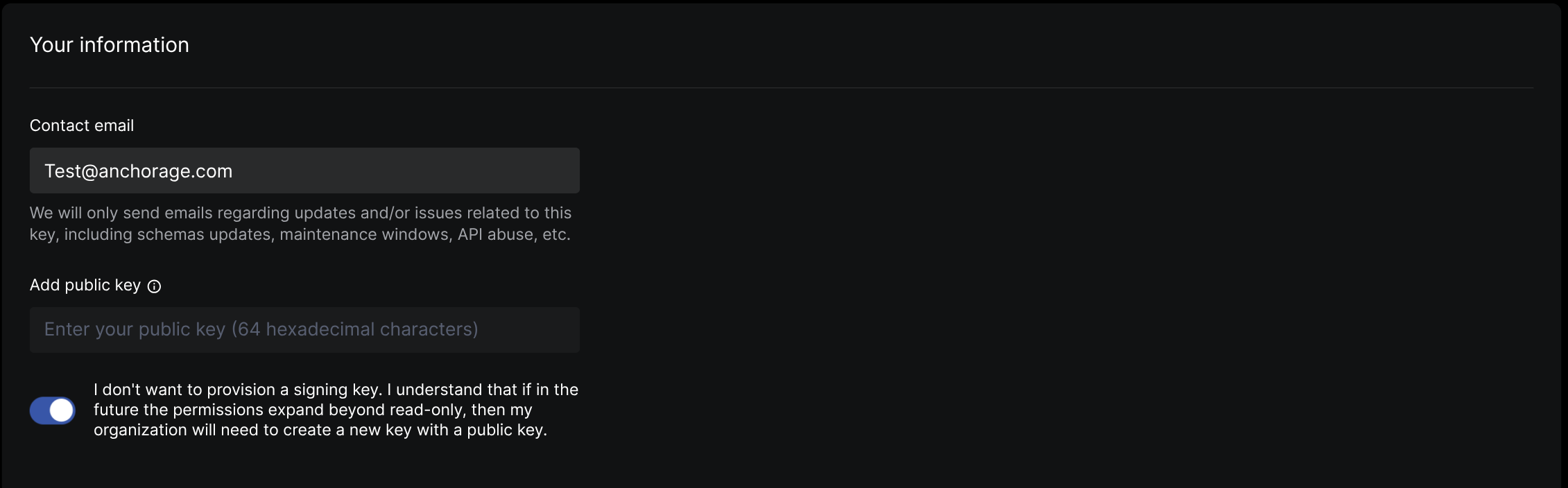
Create the shared API key for Anchorage Digital
Next, you will need to create the shared API key. This will be a permission group and API key, provisioned by the wealth manager for Anchorage Digital to leverage for the purposes of settling trades on their behalf.
To generate this, follow the steps below:
Step 1: Navigate to the developer - API 2.0 page
Step 2: Navigate to the "shared API keys" tab on the top navigation bar

Step 3: Accept the terms and conditions
Step 4: Create the permission group
This will be pre-configured with the correct information. Once you select the drop-downs, quorum approve the operation and wait for Anchorage Digital to complete its risk review and approval before proceeding.
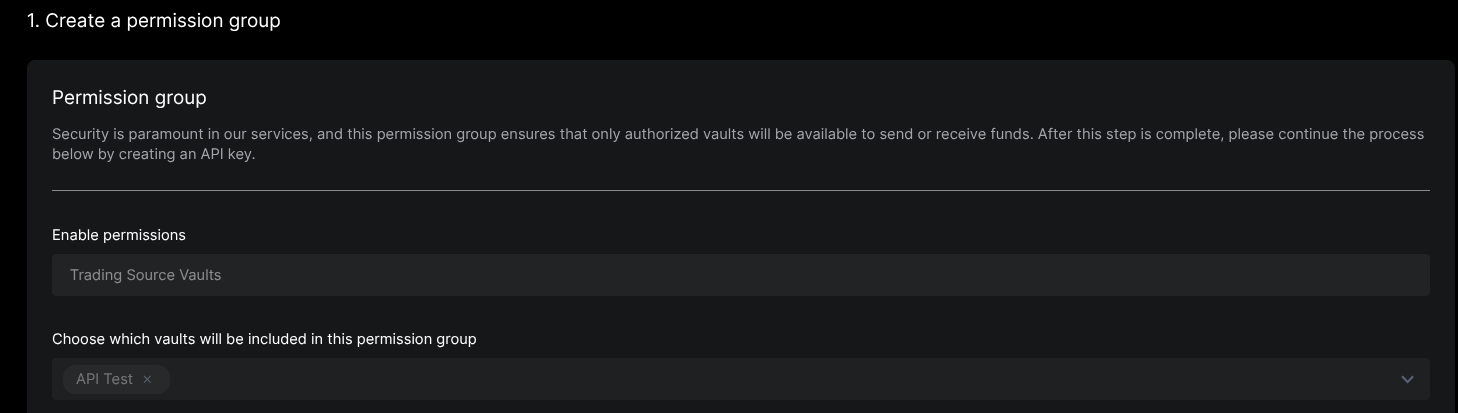
Step 5: Create the shared API key
This step also requires a quorum approval and a risk review by Anchorage Digital. However, it will not require any Ed25519 key pair, as Anchorage Digital will own and manage this key.
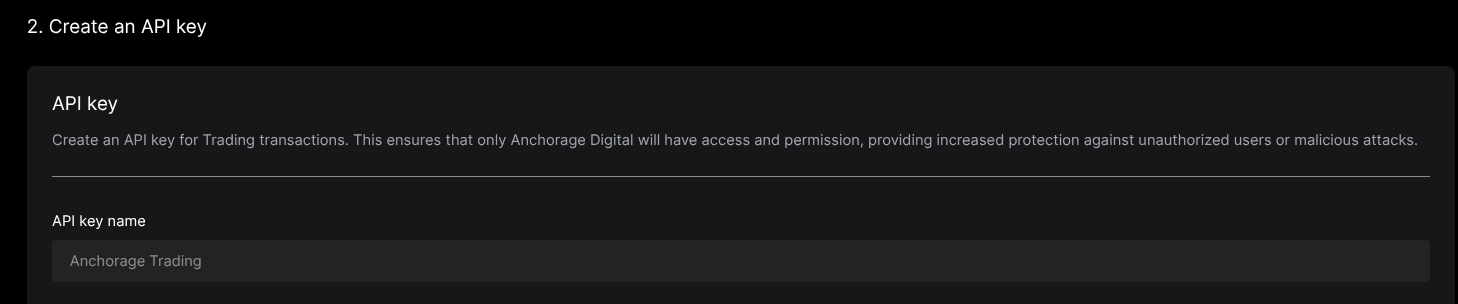
Step 6: Confirm the key creation process is complete
Verify that the key is ready to use by reviewing the API 2.0 keys table. The key status should be green and marked as "unused," after approval by the Anchorage Digital team.
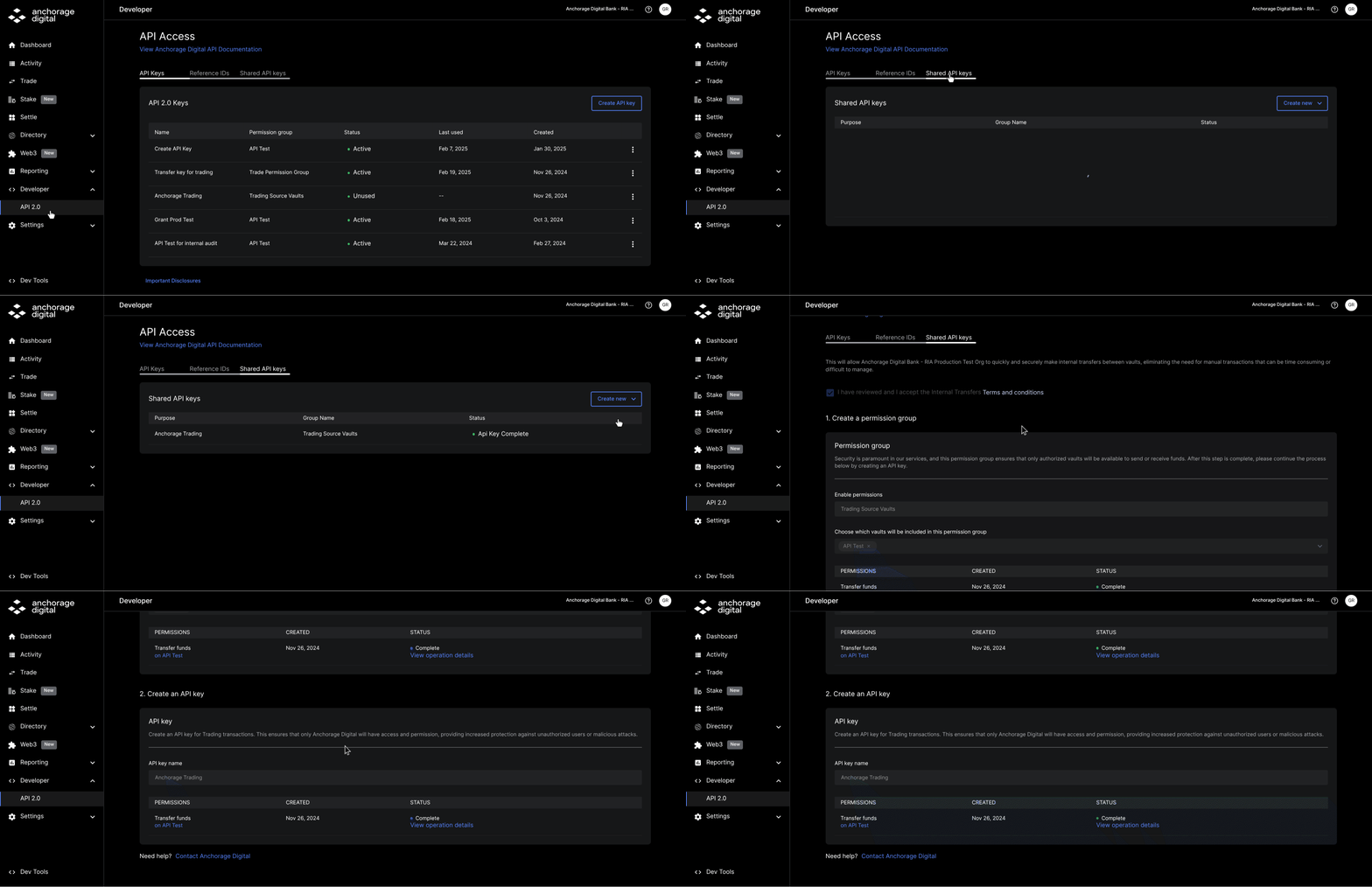
Completed Flow
API testing
For those who prefer to use API development environments like Postman for testing, you are able to test the read-only APIs directly in our documentation using your Sandbox API key (production keys will not work when testing in the on the docs above). However, for any write APIs, you will need to generate a signature to use the APIs which will need to be done outside of Postman or our reference docs.
Note: You can see example requests and responses for all endpoints in the reference docs.
API signing
- See Signatures page
Host URLs
- Sandbox: https://api.anchorage-staging.com/v2
- Production: https://api.anchorage.com/v2
Wealth manager sandbox setup
When setting up sandbox vs. production, note that some steps apply only to final production integrations (e.g., onboarding, trading, and settlement).
Sandbox onboarding and iOS app
Before testing, ensure that:
- You are onboarded to the sandbox iOS app and have access to the web dashboard.
- Onboarding details were received via email from Anchorage Digital.
Note: These steps may have already been completed by Anchorage Digital and onboarding and API key information will be shared over email. Once organization setup is completed, the wealth manager authorized and admin users will need to download the iOS application for the purpose of quorum approvals and creating API keys.
Sandbox testnet assets
While the sandbox provides a realistic simulation, it is a controlled environment, and all activities should be conducted with the understanding that it is for testing purposes only and only with testnet assets.
| Mainnet | Recommended testnet assets |
|---|---|
| Bitcoin | BTC_S (Signet) |
| Ethereum | ETHHOODI (Hoodi) |
| USDC | USDANCHOL (HOODI) |
| Solana | SOL_TD (Devnet) |
Updated about 1 year ago