
Sandbox onboarding guide
Sandbox onboarding prerequisites
To get access to a sandbox, please reach out to your main Anchorage point of contact.
To onboard to the sandbox, you will need two things:
- Anchorage Demo Application
- QR Code from Anchorage Digital for onboarding your specific sandbox account. This should be attached to the sandbox onboarding email or Slack message.
Once you have these, complete the following steps.
Sandbox onboarding steps
Note: Please use mock data when completing sandbox KYC.
-
Install the Anchorage Digital Demo iOS App.
- Open the following link on an iOS device: https://testflight.apple.com/join/REwU8aQe
- Note: Follow the steps prompted by the link to download TestFlight and the corresponding Anchorage Demo App. There is no TestFlight code, rather our Demo App download relies on the above link to configure access.
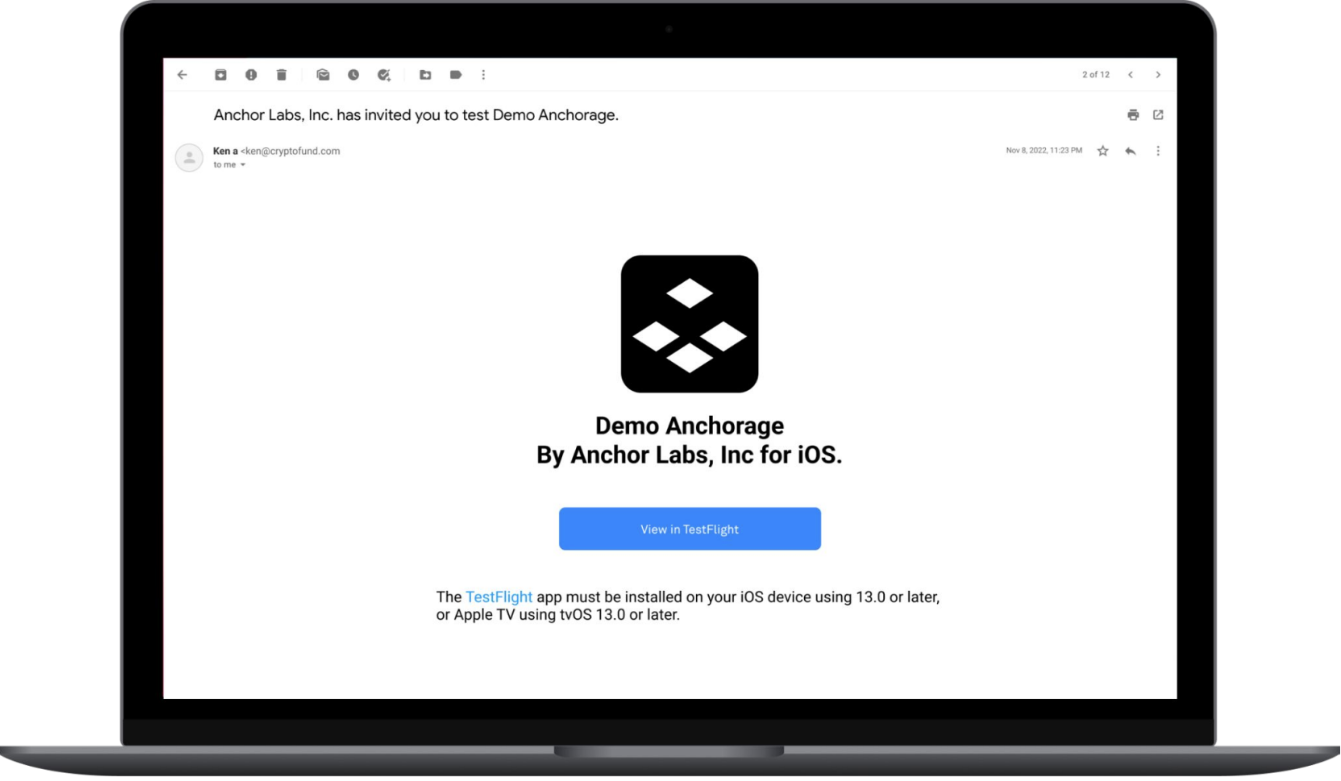
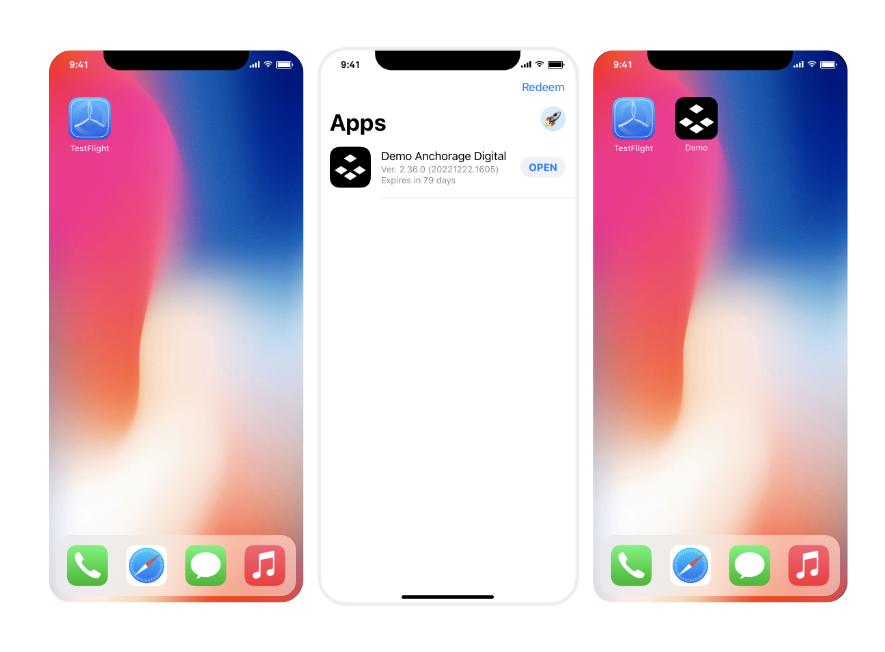
- Onboard with a one-time QR code via Demo Anchorage Digital app
- For security purposes, you will never use a username or password to login to Anchorage Digital systems. You will use a one-time QR code for the first-time login setup. After the initial setup is complete, onboarded users will use iPhone Face ID for subsequent logins.
- Open up the QR scanner. Point it to the one-time QR code that you received from your client experience manager.
- After scanning your QR code, tap Accept and continue with the KYC process, including recording your biometrics and voice print for operation verification.
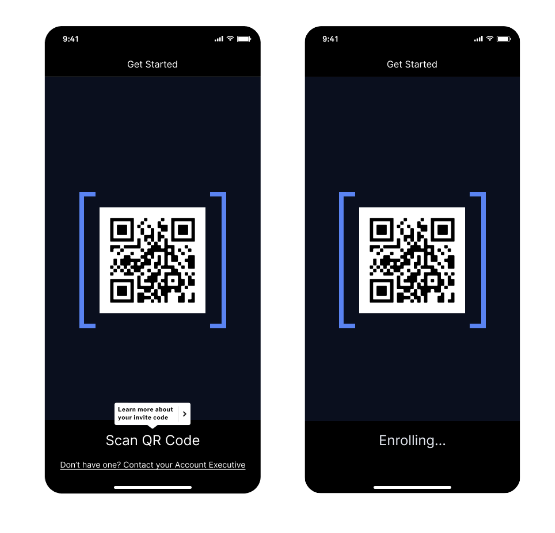
- Undergo the KYC process in sandbox
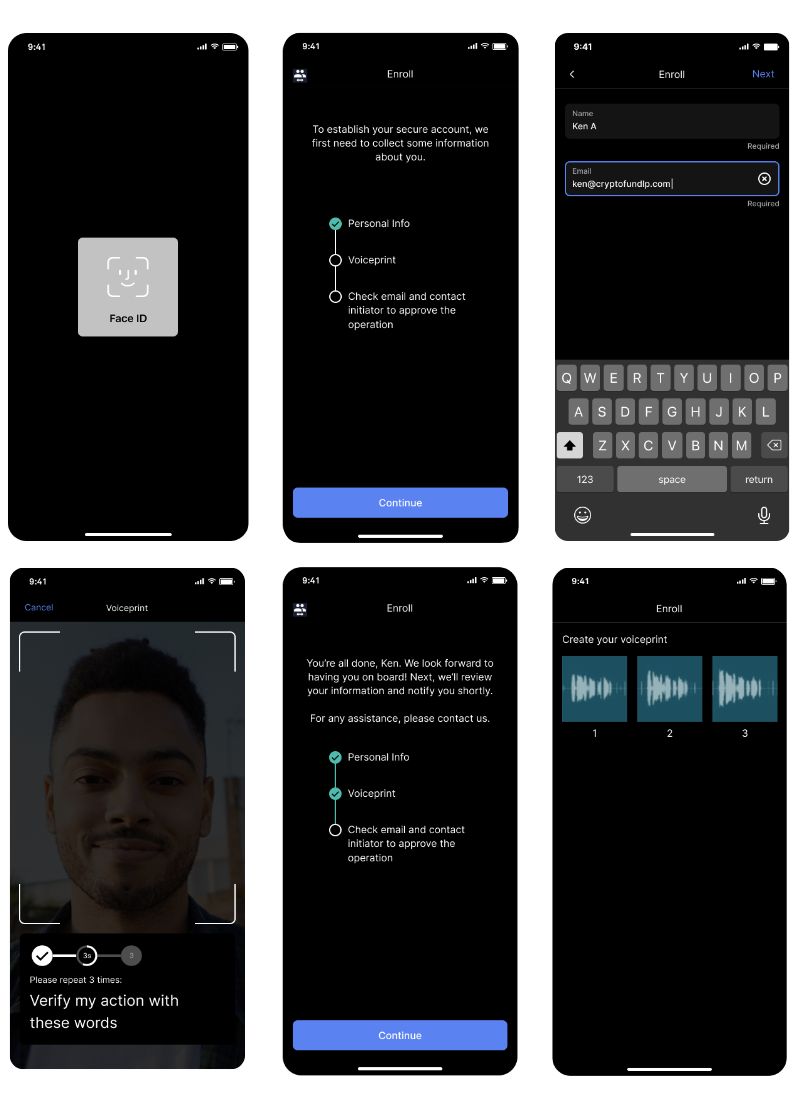
- You should now receive an email to complete the KYC form
- Click Open application to begin the KYC process in your browser.
- Once you submit, your submission will be reviewed and approved.
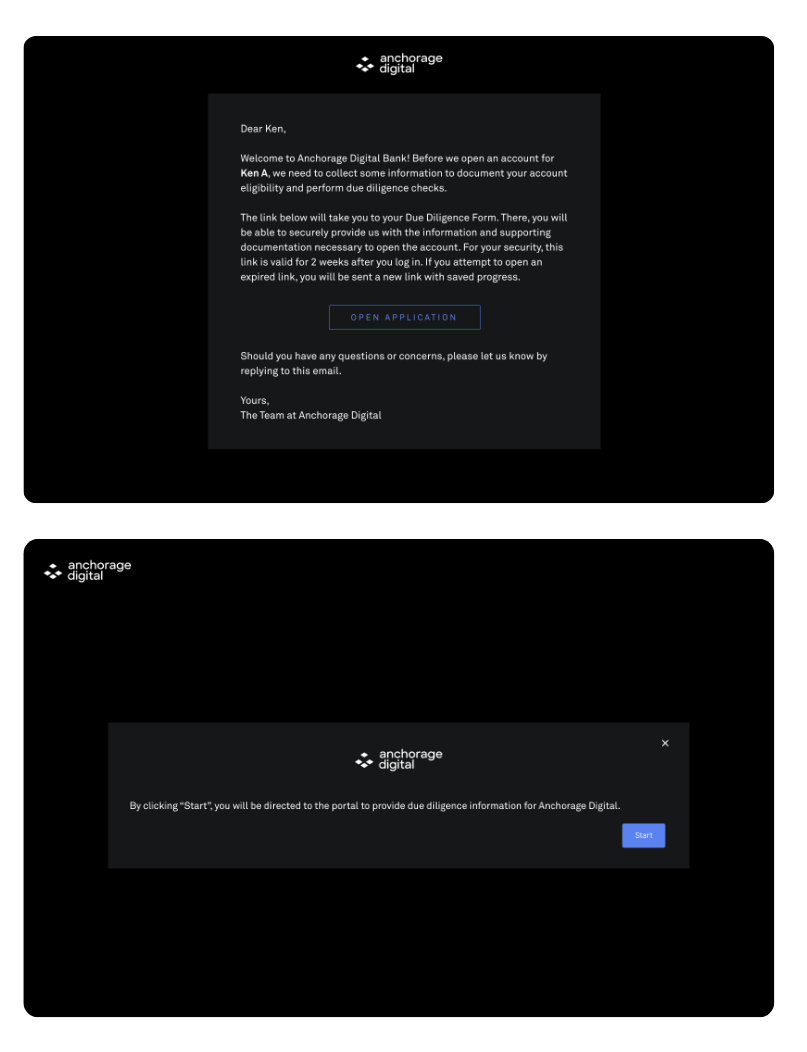
Use dummy data for sandbox KYC form
Use your legal name and email. All other information can be mock data. For production, you must submit real information.
-
Onboarding application approved - Ready to access web dashboard
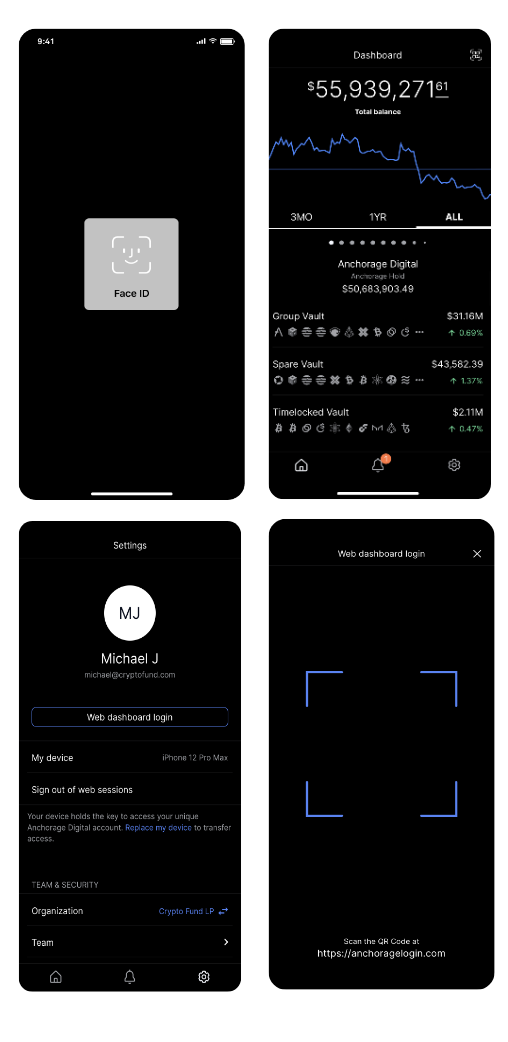
After Anchorage Digital approves your application, you can log in to the iOS application. Then, you can access the web dashboard using the iOS app by following these steps:
- Log in to your Anchorage Digital Demo app.
- Navigate to the Settings page.
- Select Web dashboard login.
- Access the staging web dashboard using the link: https://clientdashboard.anchorage-staging.com/login/
- Scan the QR displayed on the screen using the app. This QR code is for web dashboard access, found by clicking the link above, and differs from your onboarding QR code.
- Submit FaceID on your iOS device.
Adding new users
To add new users to your sandbox, you need to share the name and email of the user with your Anchorage Digital representative. They will then share a TestFlight invite with that user.
To generate a new QR code for them, follow these steps:
- Log in to your iOS app.
- Go to Settings.
- Select Team.
- Select Add new user and proceed through the screens.
- Share the QR code and have them scan it once they have downloaded the TestFlight app.
Updated 10 months ago