
3. Fund and manage subaccounts
How to fund and manage subaccounts
As soon as the subaccount is created you can begin the funding process. Depending on the funding model you offer, end clients may choose to fund their subaccounts with digital assets in-kind or USD. Depending on their funding method, you will need to consider different funding flows.
In the guide below we will cover the following core concepts:
- Funding a subaccount with USD
- Funding a subaccount with digital assets in-kind by generating a deposit wallet
- Attributing deposits to the end client
- Moving funds between same client subaccounts
- Integration Steps
Fund the subaccount with USD
To enable the end client to fund their account, the wealth manager will need to generate a USD memo by subaccount to provide to the end client to include in their Wire to Anchorage Digital. This is generated via API and will enable Anchorage to properly attribute the funds once they land.
Currently, the funding process needs to happen at the subaccount-level.
Note: We are working to improve this flow to enable bulk/ multi-customer wire attributions, which should be available soon.
Additional USD funding considerations
- ACH not supported: We do not currently accept ACH, as this makes the attribution process difficult.
- Wires without memos will be returned: Any wire received without a memo field is subject to return. Anchorage Digital will use best efforts—without guarantee—to determine the appropriate end client recipient, and requires a written confirmation from the Wealth Manager prior to attributing a wire deposit to a subaccount.
- USD funding across subaccounts for a given PC: If the end client has multiple subaccounts, they can fund one account and rebalance the USD across their subaccounts using our Subaccount Transactions API.
- Third-party wires: The originating bank account must be held in the end client’s name. Anchorage Digital does not support third-party USD deposits at this time. Payments received from bank accounts not held in the name of the end client will be returned.
Fund the subaccount in-kind with digital assets
To enable your end clients to deposit in-kind, there are a few steps that must be taken in the correct order, otherwise the funds are at risk of being lost or returned:
- Create a subaccount-specific deposit wallet for the end client, tied using the
subaccountIdand named correctly - Monitor the wallet for deposits
- Attribute the deposit to the originating end client
1) Create a deposit wallet
To ensure your end client is able to fund their account successfully you will need to generate a deposit wallet for each subaccount, for each asset. Use this endpoint, specifying the value in the subaccount field. We recommend only creating wallets when the customer asks to deposit, rather than creating these by default, as you will have many used wallets.
Note: We currently limit the number of wallets you can generate per asset to 10 wallets/ 30 mins / asset. This will increase significantly in the coming months.
2. Share with end clients
Once you've created the deposit address for the specific end client subaccount, ensure you share it with the correct end end client along with details about the Blockchain (e.g. Ethereum mainnet vs. Base) , deposit attribution and any other important account information.
Pro-tip: Test depositsAnchorage advises the wealth manager to work with the end client for their first few deposits using a reset deposit into the account using a small notional value of the asset in case they miss anything or send funds to the wrong address by accident. Once confirmed, the end client can transfer over the full value of their funds to the deposit wallet.
It is critical that you and the end client are sure on the asset symbol and network supported for this platform, as some assets are supported across multiple blockchain networks, and a deposit to the wrong one could render the funds lost.
3. Monitor the wallet for deposits
Once the funds are sent, they will need to be attributed. To monitor when the funds arrive you can leverage our webhooks to notify you of a deposit event. The alternate approach is to monitor the Deposit Attributions pending on this account.
Deposits and webhook notifications are not immediate and can take a few minutes to be confirmed on-chain. These confirmations depend on the exact blockchain, but typically we expect the deposit to complete after 2 confirmations.
Depositing unsupported assetsThe Wealth Manager must ensure that the end client understands which assets are supported by ADB; any deposits made of unsupported assets into the deposit wallet will result in assets being lost
4a. Attributing the in-kind deposit
In compliance with US federal regulations and global anti-money laundering (AML) requirements, we require additional information related to deposit activities to fulfill "Know Your Transaction" (KYT) obligations. These activities represent a critical step toward bringing crypto into the regulatory perimeter and safeguarding assets across the digital asset ecosystem.
Wealth managers are responsible for providing the required information via API before assets are visible or available in the subaccount’s balance. Funds not yet attributed to a subaccount are visible on-chain, but not on our ledger.
How to attribute a deposit
There are two options when attributing a deposit:
Email notifications to end clients about deposits
Some partners decide to alert their end clients of deposit activity and or of deposits PENDING attribution. To do this, ensure you filter out deposits with PENDING status, as these:
status | Details |
|---|---|
PENDING | State that deposit lands in post Anchorage Digital auto attribution of spam. Deposits marked spam by Anchorage will NOT show under PENDING |
INITIATED | Deposit has been detected, Anchorage Digital is attempting to automatically attribute to spam. If auto attribution is not possible, then it moves to PENDING. |
ATTRIBUTED | Terminal state for a happy path. |
UNDER_REVIEW | A deposit has been attributed but triggered as a sanctions hit that needs to be cleared by compliance. |
BLOCKED | A deposit that triggered an alert that has been confirmed with a true sanctions hit. |
NON_ATTRIBUTABLE | Semi-terminal state that is applied in very specific cases (so far only 1 use case with more than 1000 deposits has been attributed as such). |
attributionType | Details |
|---|---|
MANUAL_STAFF | Attribution was made by a member of Anchorage Digital due to information previously known about the source wallet. |
MANUAL_CLIENT | Attribution was made by the wealth manager using the Anchorage Digital web dashboard. |
CLIENT_API | Attribution was made by the wealth manager using their API Key. |
AUTOMATIC | Attribution was made automatically due to travel rule information shared by the originating VASP. |
SPAM | Attribution was made by either Anchorage Digital or the wealth manager specifying the deposit as spam. |
TRUSTED_SOURCES | Attribution was made automatically using previously collected information and a designation that originating source was a trusted source. |
Trusted sources
These are addresses you can set as a trusted source—i.e. an address where you’ve previously attributed deposits from. You can create a trusted source in the Anchorage Digital dashboard, although this is not currently available via API in production. We recommend creating trusted sources if you anticipate multiple or recurring deposits from the same customer from the same wallet address.
Trusted sources for wealth management platformPlease note that trusted sources, often created when attributing a deposit on the web dashboard, should not be used by wealth mangers, if the source address will ever be used to send funds for multiple end clients.
If a trusted source is created, and multiple end clients are receiving funds into their account from this source address, it may lead to incorrect deposit attribution information and potentially require the wealth manager to provide additional details on the deposit originator to Anchorage Digital.
Pro tip: Collect AML data when sharing the deposit addressIn production, wealth managers should collect AML deposit attribution data from the PC prior to sharing the deposit address. This ensures each deposit can be automatically attributed once it is recognized by Anchorage Digital.
Note: If Anchorage Digital is unable to make an attribution with available data, the wealth manager is responsible for providing required information via API before assets are available in the subaccount for trading.
4b. Attributing spam or unknown deposits
When funds are deposited into the account from spam deposits or dusting deposits, Anchorage Digital enables the wealth manger to attribute these as SPAM, which will not result in the unwanted balances not hitting the client's account statement or trading balances. If these balances need to be removed from the account, Anchorage Digital will transfers these from the on-chain wallets using the shared API key, as needed.
Learn more about spam depositsTo learn more about dusting or spam deposits, please reach out and we can provide more information on the topic.
Automated deposit attributions: Funding subaccount from VASP account
Crypto deposits from VASPs over $2,100, the travel rule reporting threshold, are automatically attributed by Anchorage Digital if we receive a travel rule message for a customer deposit from an active TRUST network participating in VASP. This is not instant, so if you need access to funds more quickly, we suggest using the deposit attribution API.
Manage the subaccount
Once the subaccounts are funded, you can manage a few operations and re-balance them, including:
- Creating a subaccount transaction: If the end client has multiple subaccounts, you can create a new subaccount transaction with settled funds between a single program customer's subaccounts. This is not possible for subaccounts between program customers or with any unsettled funds (use
availableForWithdrawalfor settled balance available to re-balance). - Update billing dates and fees: If you need to update subaccount billing dates and fees, you can update any active billing period or future fees by configuring the fee and only the latest fee will apply to the billing period.
- Create or update cost basis Data: See Tax data for more information.
Integration steps
Step 1: Get your VaultId
VaultIdPrior to creating a deposit wallet, you will need to get the vaultId that the wallet it's tied to.
curl --request GET \
     --url https://api.anchorage-staging.com/v2/vaults \
     --header 'Api-Access-Key: [Insert API Key]' \
--header 'accept: application/json'{
"data": [
{
"accountName": "Wealth Manager - FBO Program Customers",
"assets": [
{
"assetType": "BTC",
"availableBalance": {
"assetType": "BTC",
"currentPrice": "95740.4411896633",
"currentUSDValue": "12.81",
"quantity": "0.00013377"
},
"totalBalance": {
"assetType": "BTC",
"currentPrice": "95740.4411896633",
"currentUSDValue": "12.81",
"quantity": "0.00013377"
},
"vaultId": "7d04d1b820f1b5a903e47fd3019c58f3",
"vaultName": "Test Vault",
"walletId": "ea25287089d1393c062cef04a17f49d0"
}
],
"description": "",
"name": "John Doe_Deposit wallet_Subaccount_123456789987654323456",
"type": "VAULT",
"vaultId": "7d04d1b820f1b5a903e47fd3019c58f3"
}
],
VaultId= 7d04d1b820f1b5a903e47fd3019c58f3
Step 2: Create a deposit wallet for a subaccount
Create a new wallet for each subaccount, per asset. Ensure you configure the following correctly, otherwise you will need to create a new wallet.
- This wallet will live within the 1 Vault on the wealth manager's account at Anchorage Digital. To do this, you will need to follow the steps outlined below.
- We recommend creating a deposit wallet only when a customer requests for a deposit address, rather than creating wallets ahead of time for every asset you support.
- The recommended naming convention for deposit wallets is:
[PC name]_[Subaccount #]_Deposit Wallet
curl --request POST \
     --url https://api.anchorage-staging.com/v2/vaults/7d04d1b820f1b5a903e47fd3019c58f3/wallets \
     --header 'Api-Access-Key: [Insert API Key]' \
     --header 'accept: application/json' \
     --header 'content-type: application/json' \
     --data '
{
  "networkId": "BTC",
  "walletName": "John Doe_ec761b5e-fd2c-497a-a9a0-f8738ac97bdf_Bitcoin Deposit Wallet_1",
  "subaccountId": "ec761b5e-fd2c-497a-a9a0-f8738ac97bdf"
}
'{
"data": {
"assets": [],
"depositAddress": {
"address": "3KEFt8iLAGSHhKvQsVUabmAHZdWar45PnW",
"addressId": "2be7ad5e4dccbdf2d82b77113d908e5cb",
"addressSignaturePayload": "7b225465787441646472657373223a22334b45467438694c41475348684b765173565561626d41485a645761723435506f57227d",
"addressID": "2be7ad5e4dccbdf2d82b77113d908e5b",
"signature": "dcb09503a0dfd592749f6298a59ea46aac549aa56a1127fa51efb1ad34663eabb55bab24c9c87ff7c0e09e6d9154daeadc1805e5cf297abd8a8b404bb6b7910b"
},
"isArchived": false,
"isDefault": false,
"networkId": "BTC",
"subaccountId": "ec761b5e-fd2c-497a-a9a0-f8738ac97bdf",
"type": "WALLET",
"vaultId": "7d04d1b820f1b5a903e47fd3019c58f3",
"vaultName": "Advisor 1, FBO Program Customers",
"walletId": "6aabaa5127f3757de379e724f69d6fa10",
"walletName": "John Doe_ec761b5e-fd2c-497a-a9a0-f8738ac97bdf_Bitcoin Deposit Wallet_1"
}
}
Use testnet assets in sandbox
- BTC_T (BTC—testnet)
- ETHHOL (ETH—Holesky testnet)
- USDANCHOL (USDC—Holesky testnet)
Step 3: Identify a new deposit
Monitor the wallets and confirm when a new deposit hits the wallet. Once the wallet is confirmed on-chain, you will need to attribute it.
There are two ways to do this:
Option A: Fetch pending attributions (PENDING)
{
  "data": [
    {
      "assetType": "BTC",
      "attributedAt": "2025-01-01T19:31:02.046634Z",
      "attributionType": "API",
      "blockchainTxId": "Vd8vmSxnd4EMii7jzcGtdwRwccht8bdReWj7mN6oi2Y9FABfwQpw3i4Td2VQ1JqDtkEGML35bgrUL79jGXDkyyYp",
      "createdAt": "2025-01-01T18:31:02.046634Z"",
      "depositTransactionId": "22a73be305a4131e2b3439ca5d0fbb7a",
      ],
      "status": "PENDING",
      "subaccountId": "cb80459c-a930-444e-8f17-69ba9d0e122f"
    }
  ]
Option B: Monitor using webhooks
Configure and subscribe to webhook notifications to see your deposit notifications:
- See the Webhooks guide
{
  "payload": "eyJ0cmFuc2FjdGlvbklkIjoiNjE4Y2JkNTVlNzE2ZmFlMGVkODNjYTcyOWM4MDI2NmEifQ==",
  "timestamp": 1729112450,
  "message_id": "aa2dbc06-1665-44c0-bb8e-d2b0ad15a564",
  "event_type": "deposit.pending-attribution"
}
message_id=depositTransactionId: aa2dbc06-1665-44c0-bb8e-d2b0ad15a564
Note: Sometimes the attributions can take a few minutes to become available.
Step 4: Attribute the deposit
Once ready, Attribute each of these deposits via API.
sourceWalletType | Details |
|---|---|
CUSTODIAL | The wallet owner does not have complete control over the wallet as they do not have the private key; a third party does. This key is needed to conduct transfers. Examples of custodial wallets include: Binance, Coinbase, Kraken, and Bitgo. |
SELF_HOSTED | ThD wallet owner has complete control over the wallet as they have the private key. Examples of self-hosted wallets include: Metamask, Trust Wallet, Ledger Nano X, Trezor One, Electrum, Exodus, and Phantom |
Spam deposits: dust or unknown depositsAttribute these as spam during the attribution process to ensure they don't appear on the end client's subaccounts.
curl --request PATCH \
     --url https://api.anchorage-staging.com/v2/deposit-attributions/aa2dbc06-1665-44c0-bb8e-d2b0ad15a564 \
     --header 'Api-Access-Key: [Insert API Key]' \
     --header 'accept: application/json' \
     --header 'content-type: application/json' \
     --data '
{
  "originatorName": "John Doe",
  "originatorCountry": "US",
  "sourceWalletType": "SELF_HOSTED",
  "notes": "US"
}{
"data": {
"depositTransactionId": "aa2dbc06-1665-44c0-bb8e-d2b0ad15a564",
"status": "UNDER_REVIEW"
}
}Once attributed, the attribution will look like this:
{
  "data": [
    {
      "assetType": "BTC",
      "attributedAt": "2024-04-09T19:31:02.046634Z",
      "attributionType": "CLIENT_API",
      "blockchainTxId": "Vd8vmSxd4EMii7jzcGtdwRwccht8bdReWj7mN6oi2Y9FABfwQpw3i4Td2VQ1JqDtkEGML35bgrUL79jGXDkyyYp",
      "createdAt": "2024-04-09T19:04:41.740286Z",
      "depositTransactionId": "aa2dbc06-1665-44c0-bb8e-d2b0ad15a564",
      "notes": "Example Attribution",
      "originatorCountry": "US",
      "originatorName": "John Doe",
      "sourceAddresses": [
        "5GPMBLXtm9bDe4NeNufA22YPaUfWL4dqQP7GHm9fi1C2"
      ],
      "sourceWalletType": "SELF_HOSTED",
      "status": "ATTRIBUTED",
      "subaccountId": "cb80459c-a930-444e-8f17-69ba9d0e122ff"
}
Pro TipAfter deposits are attributed, ensure to update the missing cost basis.
This endpoint is used to update cost basis data based on the tax
transactionId. Please indicate the transaction type and the knownassetTypeandquantity.
Step 5: Generate a wire memo to fund the subaccount with USD
Create a deposit memo for the specific subaccount and share with the end client. Once deposited, these do not require attribution and will be added to their account by our team.
curl --request GET \
     --url https://api.anchorage-staging.com/v2/subaccounts/accounts/cb80459c-a930-444e-8f17-69ba9d0e122ff/bank-info \
     --header 'Api-Access-Key: [Insert API Key]' \
--header 'accept: application/json'{
"data": {
"bank": "Customers Bank",
"bankAccountNr": "1234567",
"bankAddress": "123 Test",
"bankRoutingNr": "123456789",
"bankSwiftCode": "CUESUS33",
"beneficiaryAddress": "123 Test",
"beneficiaryName": "Anchorage Digital Bank NA",
"memo": "515624204"
}
}
Important wire notes
- Memo: Please communicate to clients when they send a wire to please use either the "Message to Beneficiary" (OBI) field or sometimes called "Message to Recipient" (OBI). If these are not available, use the "Memo" field.
- International Wire Swift Code: For international wires, please share the
bankSwiftCode.
Step 6: View subaccountId balances
Once all funds have been attributed to the account, get all subaccount balances for the end client to prepare for your first end client subaccount trade.
Balances refresher
These subaccounts have asset position balances and transaction types, which correspond to the on-chain and off-chain activity tied to the funds involved. Funds within these subaccounts can be re-balanced within an end client's subaccounts, assuming they're settled.
availableForTrading: Balance you can trade with—may include funds that have not settled.availableForWithdrawal: Balance of settled funds available to withdraw, less any unsettled trades.totalBalance: Balance after each settlement is completed.
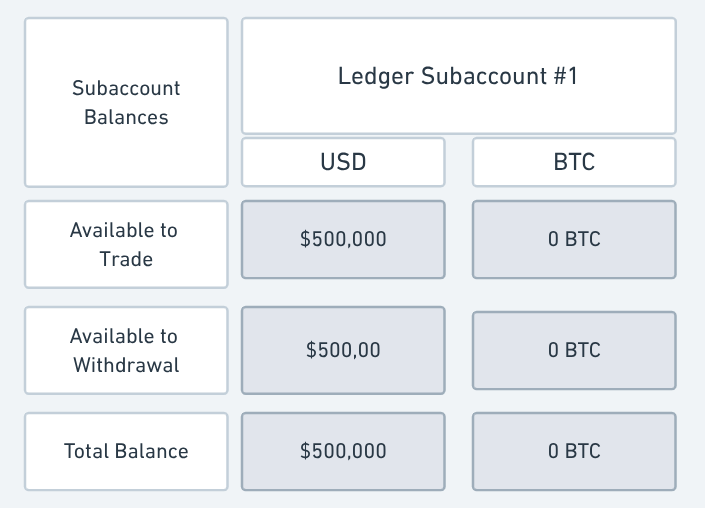
Subaccount balances
curl --request GET \
     --url https://api.anchorage-staging.com/v2/subaccounts/customers/cf326d89b501d7ff2d1c7b7ffea4bd305a6561b54c9c6158160e17b5aca5cec2/accounts \
     --header 'Api-Access-Key: [Insery API Key]' \
--header 'accept: application/json'{
"data": [
{
"subaccountId": "cb80459c-a930-444e-8f17-69ba9d0e122f",
"createdAt": "2025-02-18T12:34:56.000Z",
"name": "A1234_John Doe_Strat1",
"customerId": "cf326d89b501d7ff2d1c7b7ffea4bd305a6561b54c9c6158160e17b5aca5cec2",
"externalSubaccountId": "A1234_Grant Robinson_Strat1",
"fees": [
{
"type": "MANAGEMENT",
"rate": 0.01,
"startDate": "2025-02-18",
"isBillable": true
},
{
"type": "CUSTODY",
"rate": 0.01,
"startDate": "2025-02-18",
"isBillable": true
}
],
"balances": [
{
"assetType": "BTC",
"totalBalance": "100",
"availableForWithdrawal": "100",
"availableForTrading": "100"
},
{
"assetType": "USD",
"totalBalance": "100000",
"availableForWithdrawal": "100000",
"availableForTrading": "100000"
}
],
"accruedFees": [
{
"startPeriod": "2025-02-18",
"endPeriod": "2025-02-20",
"accruedValue": "1.21",
"rate": 0.001,
"type": "MANAGEMENT",
"totalBalanceInUSD": "121.33",
"state": "ONGOING"
},
{
"startPeriod": "2025-02-18",
"endPeriod": "2025-02-20",
"accruedValue": "1.12",
"rate": 0.0025,
"type": "CUSTODY",
"totalBalanceInUSD": "112.33",
"state": "DONE"
},
{
],Step 7. Move funds between same-client subaccounts with a subaccount transaction
To move funds between the same -client subaccounts, you can create a ledger transaction to re-balance any settled funds (useavailableForWithdrawalfor settled balance available to rebalance).
curl --request POST \
     --url https://api.anchorage-staging.com/v2/subaccounts/transactions \
     --header 'Api-Access-Key: [Insert API Key]' \
     --header 'accept: application/json' \
     --header 'content-type: application/json' \
     --data '
{
  "transactions": [
    {
      "sourceSubaccountId": "cb80459c-a930-444e-8f17-69ba9d0e122f",
      "destinationSubaccountId": "3eeaf765-0df2-49c9-9e1f-db9cf3e796dd",
      "assetType": "USD",
      "amount": "1000.00",
      "transactionMemo": "USD re-balance",
      "idempotentId": "12838927347"
    }
  ]
}{
"data": {
"transactionIds": [
{
"transactionId": "c4c4652f-0c07-472c-a7f8-955fbe07775d",
"idempotentId": "12838927347"
}
]
}
}
Pro-tip: Bulk subaccount transactionsLeverage the
idempotentIdto ensure that these transactions are not submitted more than once.
{
  {
	 "sourceSubaccountId": "cb80459c-a930-444e-8f17-69ba9d0e122f",
   "destinationSubaccountId": "3eeaf765-0df2-49c9-9e1f-db9cf3e796dd",
	  "assetType": "BTC",
	  "amount": "1000.00000000",
	  "transactionMemo": "Internal ID: #12838927347",
	  "idempotentId": "12838927347"
  },
  (...)
  {
	 "sourceSubaccountId": "cb80459c-a930-444e-8f17-69ba9d0e122f",
    "destinationSubaccountId": "db9cf3e796dd-0df2-49c9-9e1f-1b9cf3e796dd",
	  "assetType": "ETH",
	  "amount": "1000.00000000",
	  "transactionMemo": "Internal ID: #98872831313",
	  "idempotentId": "98872831313"
  }
}
Step 8. Update the subaccount billing fees or dates
Update fee rates and billing dates for the given subaccount.
- To update dates or fees, provide the
subaccountIdandstartDate. - These updates rates will trigger a notification to the end clients and the Wealth Manager―including in sandbox emails.
- Updated rates will apply from the date you specified when updating it.
- If the update is made in the middle of a billing cycle, accrued amounts will retroactively update to reflect the new rate for the month.
- End of month billing will apply to the latest rate specified for that month.
curl --request PATCH \
     --url https://api.anchorage-staging.com/v2/subaccounts/accounts/cb80459c-a930-444e-8f17-69ba9d0e122f \
     --header 'Api-Access-Key: [Insert API Key]' \
     --header 'accept: application/json' \
     --header 'content-type: application/json' \
     --data '
{
  "fees": [
    {
      "type": "ADVISORY",
      "rate": 0.01,
      "startDate": "2025-02-20"
    }
  ]
}{
"data": {
"subaccountId": "cb80459c-a930-444e-8f17-69ba9d0e122f"
}
}Updated 11 months ago