
Crypto Internal & External Transfers API
Overview
A transfer is a fully programmatic movement of assets to a different on-chain destination, either internal or external, without the need for a per-transfer quorum.
Transfer types
- External transfer: Movement of assets to any external address, which needs to be whitelisted as a trusted destination and requires a transfer AML questionnaire to be submitted in the payload.
- Internal transfer: Movement of assets to any of your wallets within the Anchorage Digital ecosystem. These destinations do not need to be whitelisted, and the transfer does not require an AML questionnaire.
External transfer - Destination typeOne key difference for external transfer is that the destination type must be set to ADDRESS and use a trusted destination. REMINDER: Wallet is the recommended source type over Vault.
{
  "source": {
    "id": "{ADD ID HERE}",
    "type": "{WALLET or VAULT}"
  },
  "destination": {
    "id": "{ADD ID HERE}",
    "type": "{WALLET or VAULT}"
  },
  "assetType": "{Asset}",
  "amount": "{Quantity}",
  "transferMemo": "{Memo}",
  "idempotentId": "{UID}"
}
{
  "source": {
    "id": "{ADD ID HERE}",
    "type": "{WALLET or VAULT}"
  },
  "destination": {
    "id": "{Add wallet address here}",
    "type": "ADDRESS"
  },
  "assetType": "{Asset}",
  "amount": "{Quantity}",
  "transferMemo": "{Memo}",
  "idempotentId": "{UID}",
  "transferAmlQuestionnaire": {
		"purpose": "{Memo}",
    "originatorType": "{Memo}"
}
Pro-Tip: External transfer trusted destinationsCreate your trusted destinations ahead of generating your API permission group. These are required ahead of selecting the permissions within the API permission group.
Note: You can edit this list at any time, but at least one trusted destination must be included to set up the permission group.
Permission segregationDo not use the same permission group or key for internal and external transfers. As a general rule, we recommend clients never include internal and external transfer permissions as part of any single permission group and API key.
Review assetParameters tokens in "Additional Transfers Details"If transferring to an address with a memo or destination tag associated, you must include assetParameters matching that field exactly. When creating a Trusted Destination for an asset with either of these associations, be sure to use the appropriate string in the memo field, and mimic that exact string in assetParameters when sending a transfer. If memo is left blank in a Trusted Destination, your assetParameters field should also be left blank in the transfer request.
Transfer APIs
| API | Overview |
|---|---|
| Create a transfer request | Initiates a transfer of funds between Anchorage Digital wallets or external addresses.
|
| List transfers | Returns metadata on all transfers, including ones that are in-progress, completed, or failed. |
| Get transfer by ID | Returns metadata on a specific transfer using TransferId. |
| Cancel a transfer request | Cancels an active transfer request. Note: Transfer requests in the |
| Status | Overview |
|---|---|
IN_PROGRESS | This transfer is in progress and is not finalized. |
COMPLETED | This transfer has been completed and is confirmed on the blockchain. |
FAILED | This transfer has failed as funds were not successfully transferred. |
QUEUED | This transfer has been queued behind another transfer of the same asset. This status also appears for external transfers as soon as they are submitted. |
External transfer API | Getting started
To start using the External Transfer API, you must first complete a few one-time configuration steps:
- Create a Trusted Destination
- Create an API Permission Group
- Create an API Key
1: Create a trusted destination
Trusted destinations enable clients to allow-list external addresses using the iOS app or web dashboard and require a quorum approval.
Once you have created a trusted destination, you will need to create a new permission group or add the destination to an existing permission group.
Client web dashboard
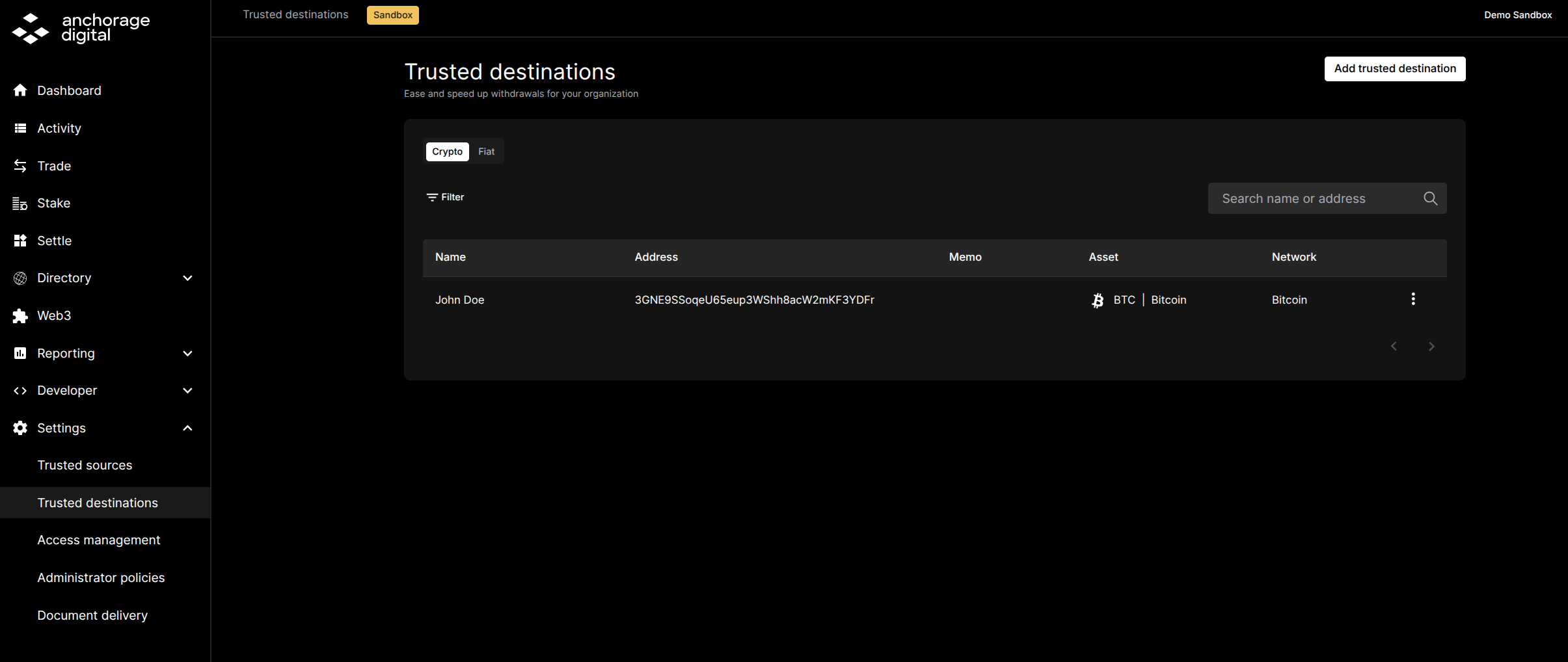
First, navigate to the settings tab, then select trusted destinations.
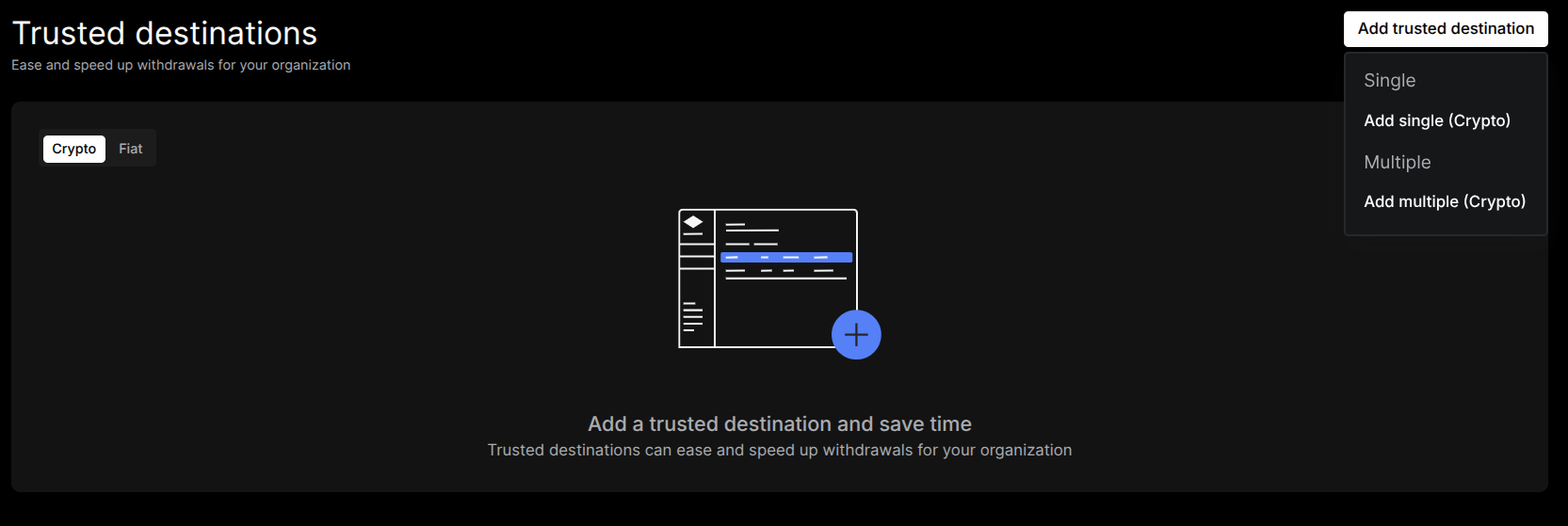
Next, select Add trusted destination in the upper right corner. Then, select add single crypto.
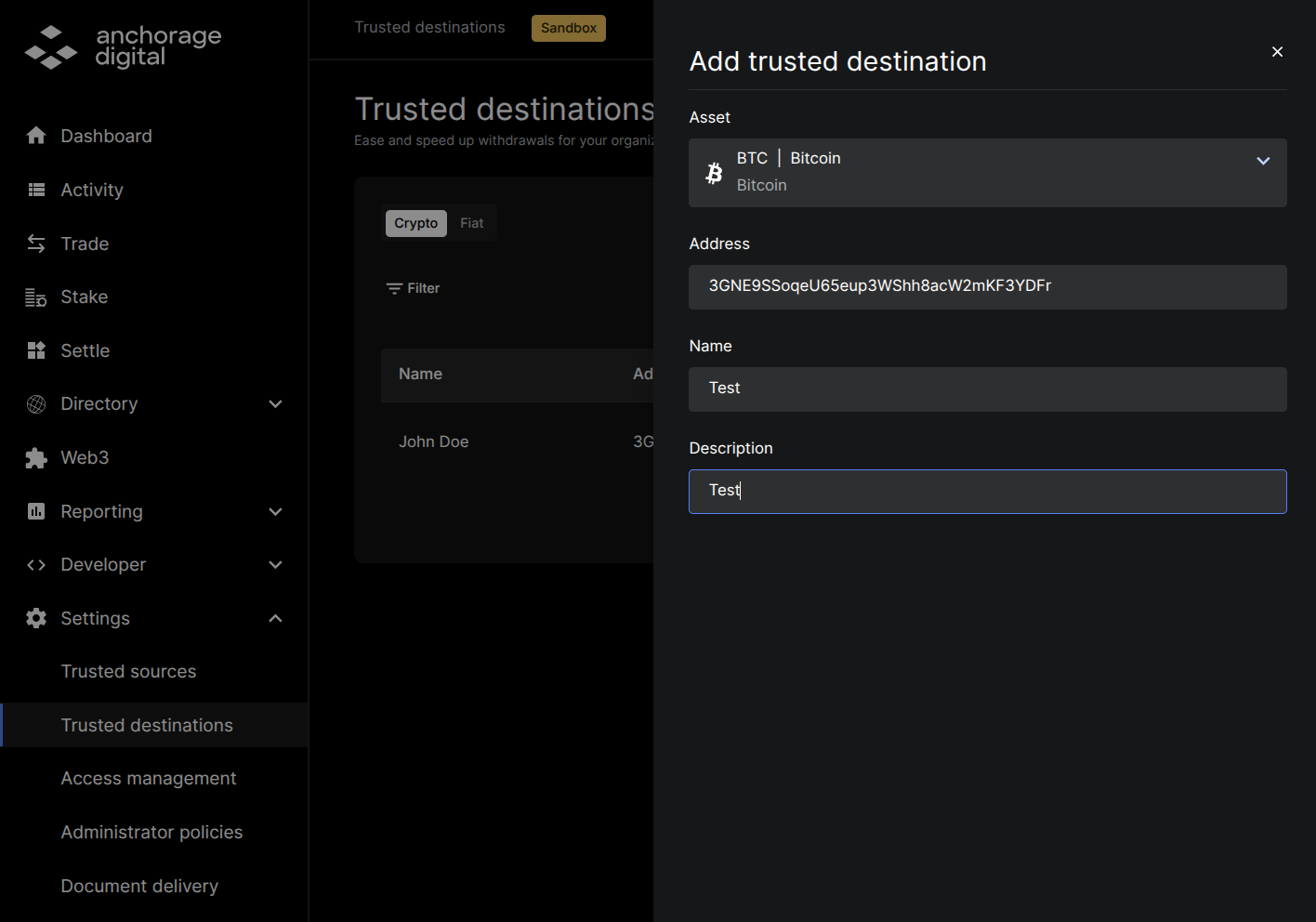
Next, enter in the relevant information for the destination address.
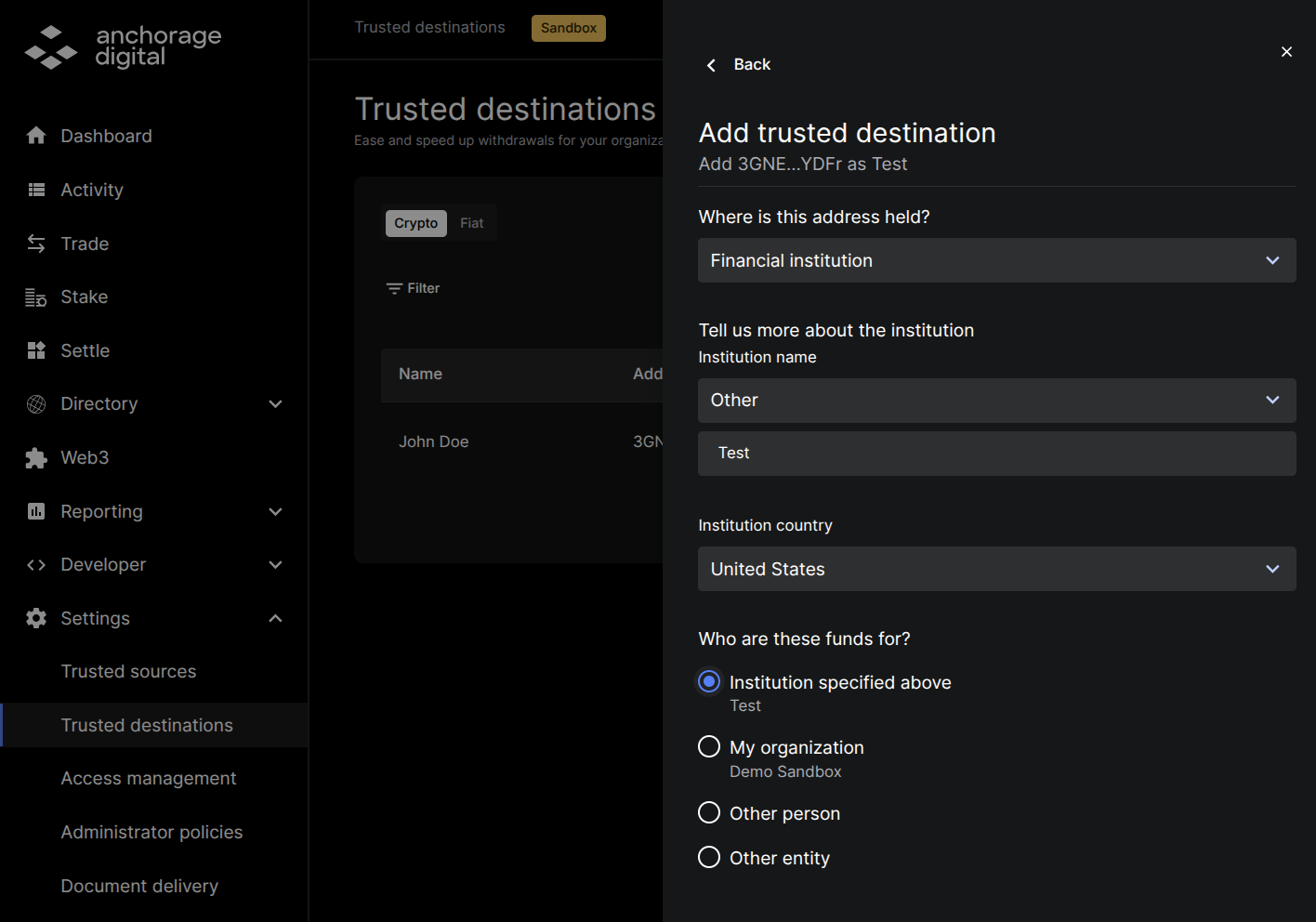
Then, endorse and quorum approve this operation on your iOS device.
Step 2: Create or Update an API permission group
First, navigate back to the developer tab, and select API 2.0.
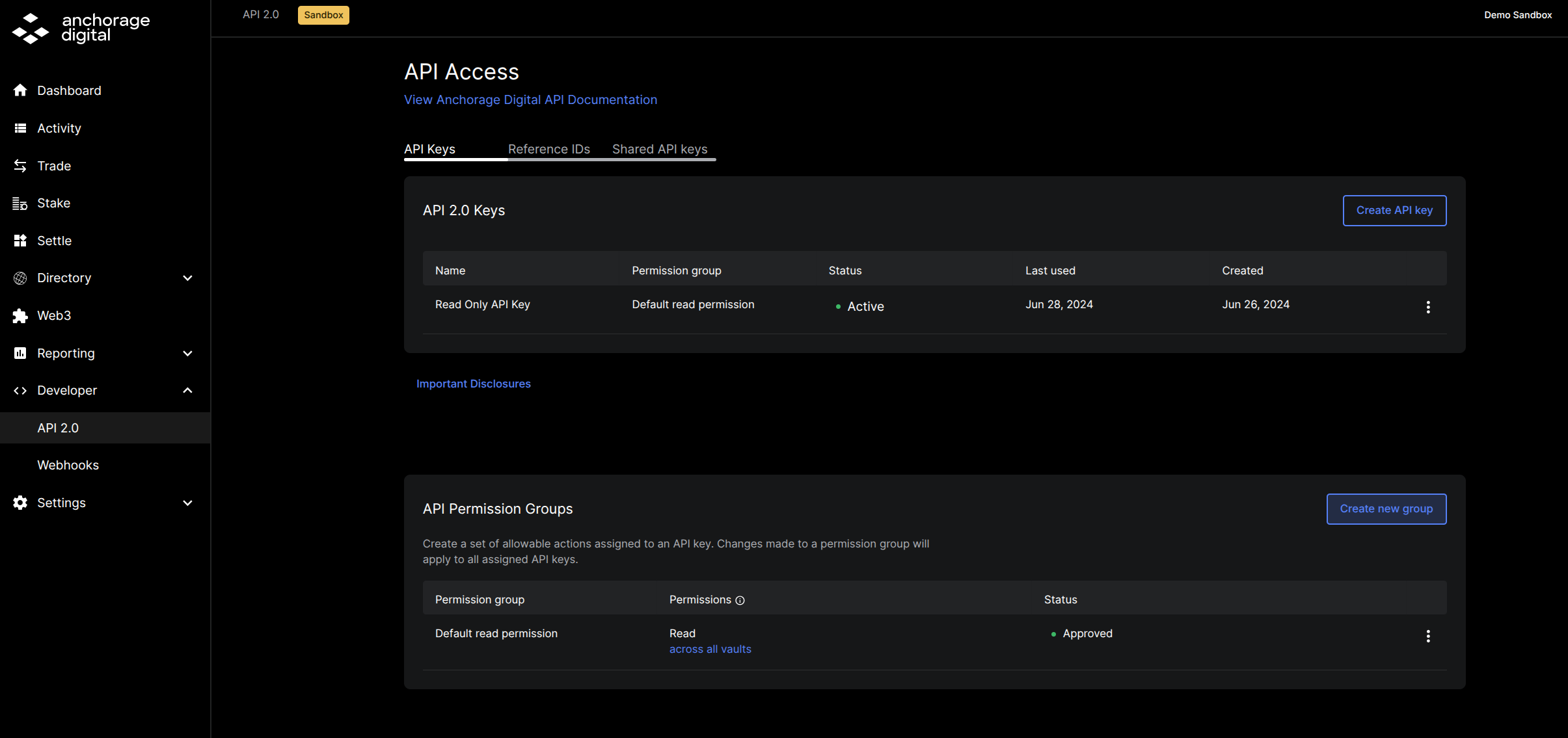
Next, enter the key name and select all other permissions that apply. Then, scroll down to the Vault-level permissions, and select transfer funds within the All Vaults section or a specific vault.
If you select all vaults, these will apply to all future vaults you create.
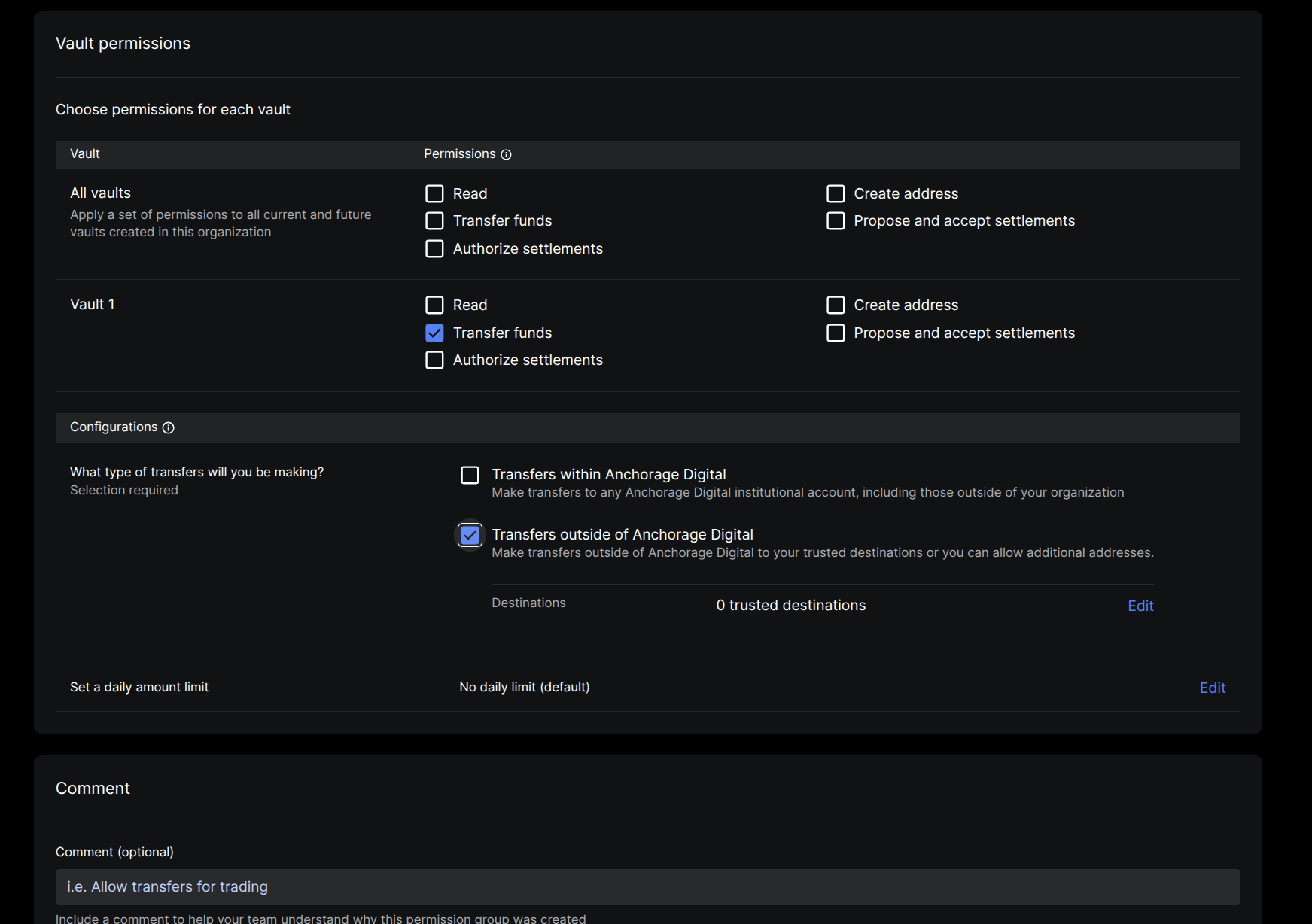
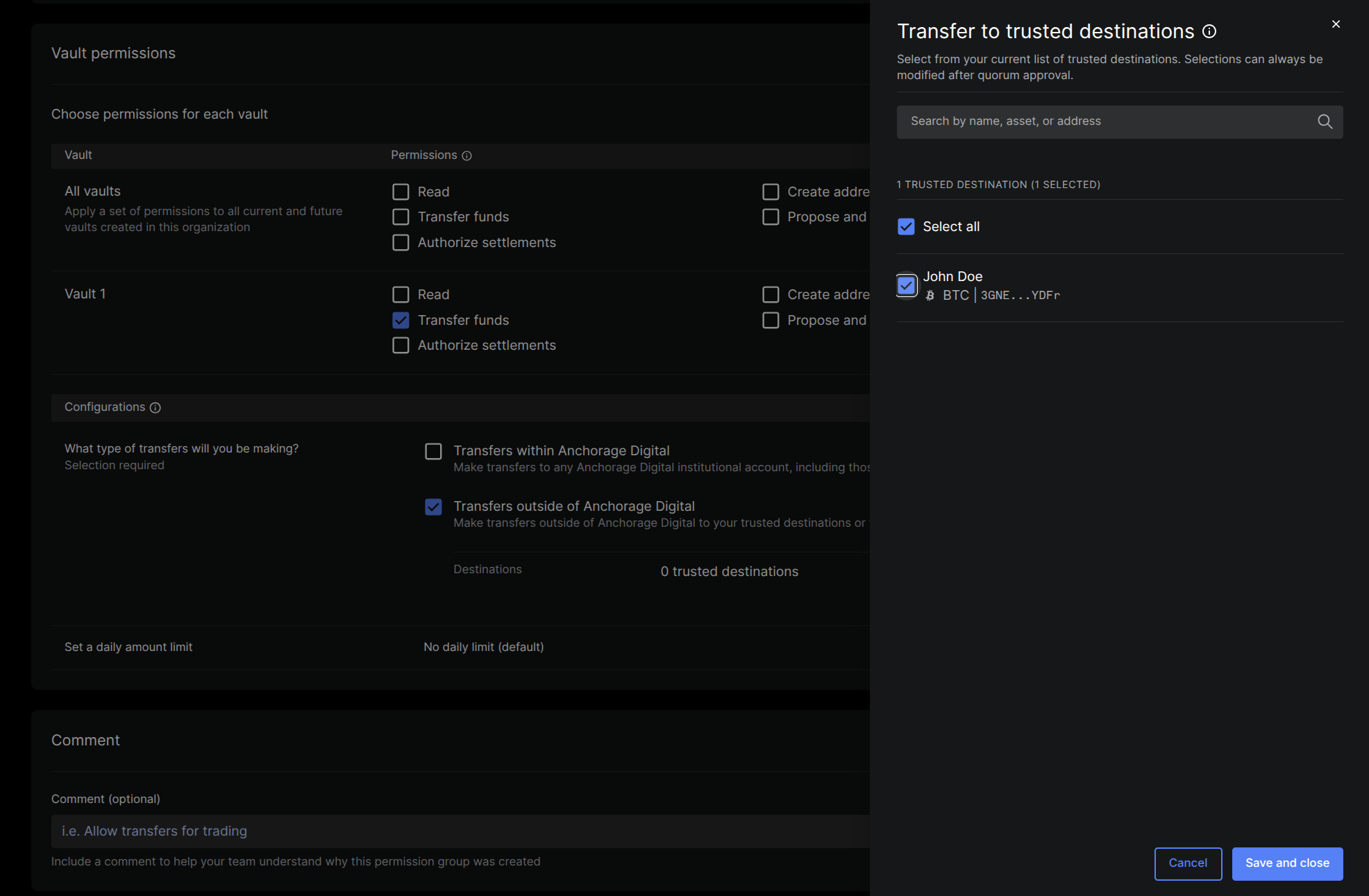
Then, select transfers outside of Anchorage Digital. Next, click on the edit button for the trusted destination row.
Select all trusted destinations that you would like to be able to transfer to. Then, click save and close.
Adding new trusted destinations to existing permission groupIf you have an existing API permission group and you need to add a new trusted destination, you will need to follow the steps outlined below:
- Create a new trusted destination + quorum endorsement
- Edit the permission group + quorum endorsement
- Use existing API Key or create a new one
Additional Information
- See how to upload bulk CSV for adding multiple trusted destinations
- See how to create an whitelisted trusted destination via API in our developer guide
Step 3: Create an API Key
Navigate back to API 2.0 page, and select Create API Key.
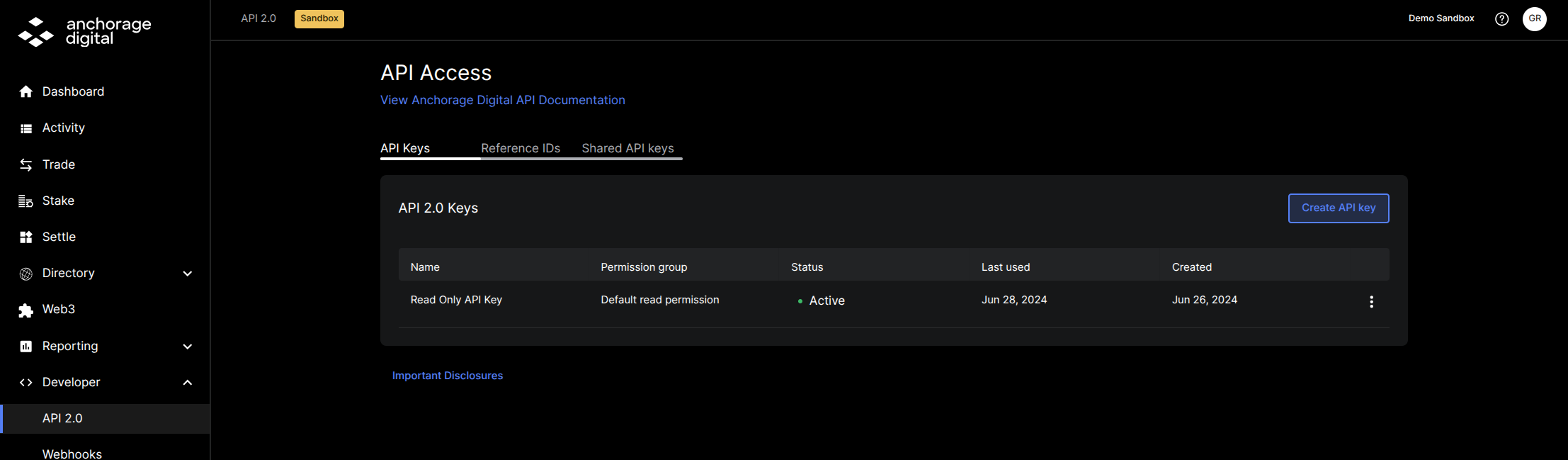
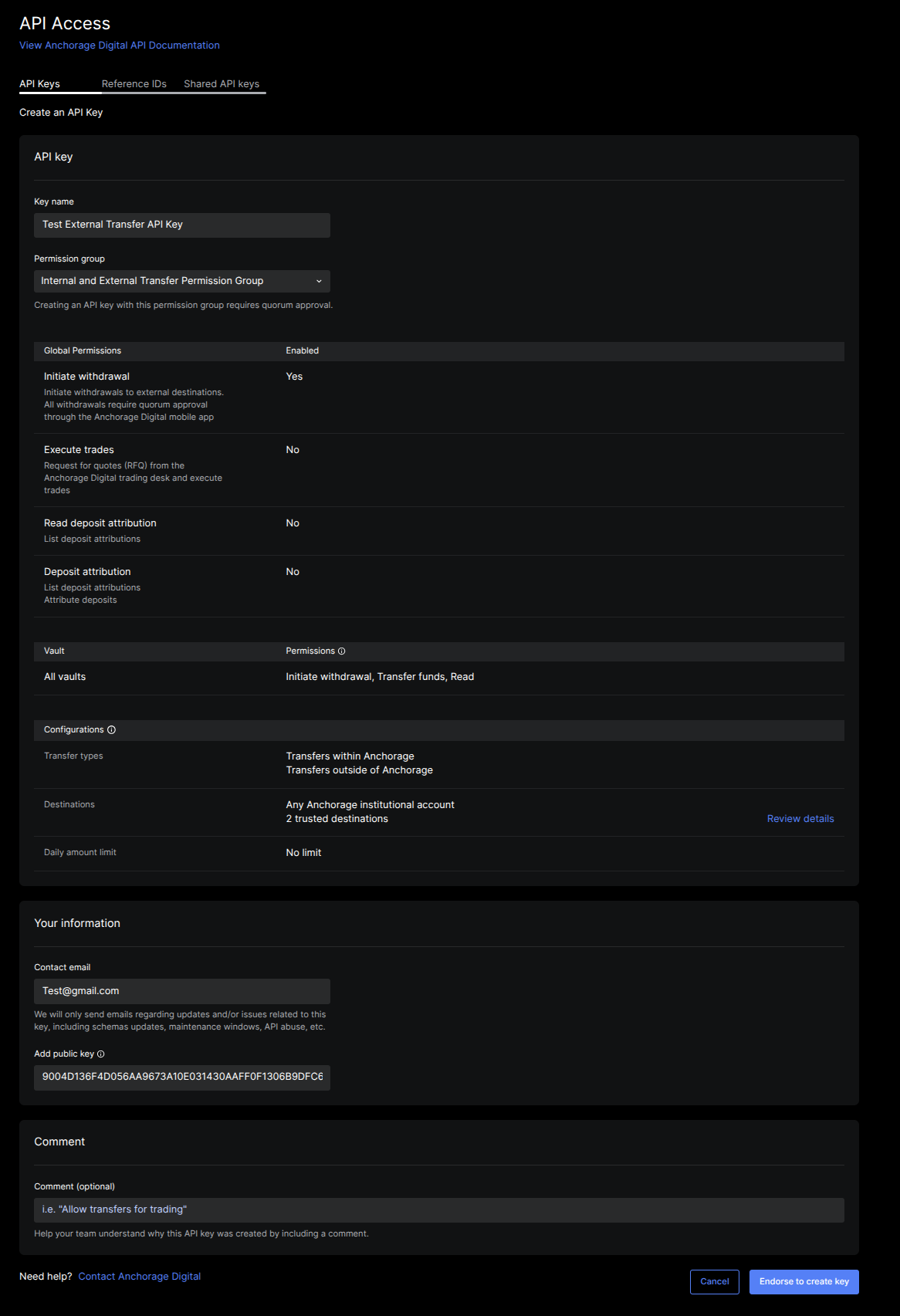
Next, enter in the name, select the permission group you created above, and add a contact email.
Then, you will be asked to enter in the Ed25519 Public Key. This can be generated from the script here.
Once you are ready to submit, select endorse to create key.
API Keys with External Transfer API permissions will also require quorum approval before they can be used.
AML Questionnaire
For external transfers, you will need to submit a small AML questionnaire as part of the payload.
- Please see more about the payload in the example above
- Please see more about AML questionnaire in our developer guide
Additional Transfer Details
Multiple transfers - Transfer queuing
Multiple transfers within the same wallet for assets on the same blockchain can be queued, if submitted in quick succession, as Anchorage Digital can only process one on-chain transfer per wallet at a time.
Once a transfer is completed, it is also logged as a transaction within Anchorage Digital and can be queried using either the list transfers or list transactions endpoints.
- See the withdrawal API section for more information on programmatic withdrawals that require quorum approval via iOS app to move assets to internal or external addresses.
- Transfers expire 24 hours after they are initiated.
Details:
Up to 50 transfers requests from the same source wallet can be queued up at one time.
Transfer requests are queued and processed in the order they were received. When transferring between wallets, multiple transfer requests may be queued for the same asset in a given wallet, but only one will be broadcast at a time. The other requests will remain in the QUEUED state until the prior transfer is completed or fails.
API-initiated transfers do not require a quorum and can be initiated for assets on the same or different blockchains. If transfers are initiated using two or more vaults/wallets or on two separate blockchains within the same vault, the transfers can proceed in parallel.
- Successful transfers in parallel—also applies to external transfers:
- BTC transfer from wallet 1 to wallet 2 within Anchorage Digital.
- ETH transfer from wallet 1 to wallet 2 within Anchorage Digital.
- Queued transfers—also applies to external transfers:
- ETH transfer from wallet 1 to wallet 2 within Anchorage Digital.
- USDC transfer from wallet 1 to wallet 2 within Anchorage Digital.
- This second transfer is queued until the first transfer has been completed, as this transaction is also broadcast on the Ethereum blockchain.
assetParameters
These can be used when transferring to other institutional wallets where the deposit address also requires an asset memo
AssetParameters Supported |
|---|
| ATOM |
| Cosmos |
| DYDX |
| Extra |
| HBAR |
| STX |
| TIA |
| XLM |
| XRP |
| ZETA |
| ZETA |
useGasStation
If true, the Anchorage Digital gas station will pay gas fees for supported asset types and organizations. This will slow the speed of processing slightly, as Anchorage Digital will need to send funds into the originating wallet, then we will process the transfer.
Gas station overviewLean more about gas station
Daily transfer limit
An optional daily transfer limit is available for permission groups as an additional security measure. The daily transfer limit can be set when creating a permission group and applies to all API Keys associated with the permission group over a rolling 24-hour period.
This can be adjusted at any time by editing the permission group, although a quorum approval will be required for the update. Once the updates are confirmed, the limit will automatically adjust for that day to match the new limit.
Internal and external transfers made using keys tied to this permission group will be considered for the daily limit, as well as on-chain network fees.
Gas and network fees are counted towards the amount used against the permission group's daily transfer limit.
At the time each transfer is submitted, Anchorage Digital applies our network fee/gas fee estimate, which is counted toward the total amount used toward the daily limit. This is important to consider when setting the limit, as the amount used may be higher than the expected transfer amount due to on-chain fees.
deductFeeFromAmountIfSameType
- If set to
True, the network fee will be reduced from the specified transfer amount, assuming this is less than or equal to the amount of the transfer. - If this is set to
False, the network fee will be charged in addition to the transfer amount
Transferring full balance
For assets with network fees paid in a separate asset type, transferring the full balance of an asset is no different than transferring any other amount for that asset.
For assets with network fees paid in the same asset type, transferring the full balance is not possible without specifying to the server that the fee should be deducted from the transfer amount. See the deductFeeFromAmountIfSameType flag of the transfers request model for more detail.
Troubleshooting
Unauthorized error (external transfers)This is the most common error client will see. Follow the checklist below to ensure you have all of the correct configs, prior to reaching out:
- Are you using the correct URL for the environment you are in?
- Production: https://api.anchorage.com/v2/transfers
- Staging: https://api.anchorage-staging.com/v2/transfers
- Has the address you're sending to been added as a trusted destination?
- Does your API permission group have Transfer to external addresses enabled on the API key you are using?
- Have you connected the trusted destination to your permission group while creating it or by editing the existing permission group and endorsing the operation?
Successful transfers
If the transfer request is valid, the request will initiate a transfer transaction from the source. This transfer will not require a quorum of approvals and will not undergo a risk review.
When the successful transfer—now also identified as a completed transaction—is broadcast and confirmed on the blockchain, a subsequent deposit will be detected for the destination vault. All of these transactions will be visible in the iOS app, web dashboard, and via API.
Unsuccessful transfers
A transfer request may fail for any of the following reasons:
- The specified sending resource does not exist or does not support the specified asset type,
- The specified amount exceeds the available funds for this asset (e.g. insufficient funds),
- The destination does not exist or does not support the specified asset type, or
- The provided API key does not have permissions to initiate transfers from this vault.
If the transfer request is successful, the actual transfer transaction may fail for any of the following reasons:
- There are insufficient funds to pay the network fee at the time of this transaction.
- The transfer was successfully queued, but there were insufficient funds to cover the transfer amount and network fee by the time it was processed, or there is a failure on the blockchain.
Transfer network fees and full balance transfers (empty out wallet)
Internal and external transfer network fees can be deducted from the same wallet if the walletID is passed in the request body as the source of the transfer. However, if the vaultID is the source of the transfer, funds and network fees will be pulled from the default wallet within that vault (List Wallets, isDefault=True).
For assets with network fees paid in a different asset type (e.g. a USDC fee paid in ETH) , transferring the full balance of an asset is no different than transferring any other amount for that asset, as the deduct fee flag will not have any impact.
For assets with network fees paid in the same asset type, transferring the full balance via API is only possible when specifying that the fee should be deducted from the transfer amount using thedeductFeeFromAmountIfSameType flag. This flag is ignored for transfers where the amount and the fee asset types are different.
Note that network fees can be deducted from the transfer amount if the:
- The
deductFeeFromAmountIfSameTypeflag default is set toFalse:- Network fees will be added to the amount requested.
- For example, a request to transfer five BTC with
deductFeeFromAmountIfSameTypewhenFalsewould result in five BTC received to the destination vault and ~5.01 BTC spent by the source vault.
- If the
deductFeeFromAmountIfSameTypeisTrue:- If the amount transferred is the same asset type as the network fee for the transfer, the network fee will be deducted from the amount instead.
- For example, a request to transfer five BTC when
deductFeeFromAmountIfSameTypeisTruewould result in just under five BTC received to the destination vault.
- For assets where the exact fee taken by the network is unknown until the transaction is broadcast, it is likely that the amount spent will fall short of the amount requested by Anchorage Digital to guarantee the success of the transaction.
- For UTXO-based assets, if
deductFeeFromAmountIfSameTypeisTrueand the amount requested for transfer is close to the total balance of the asset in the wallet, the network may refuse to accept this transaction because the remainder would not be spendable. However, this is an unlikely case.
Updated 6 months ago